By using this site, you agree to the Privacy Policy and Terms of Use.
Accept
GizmoGeek HubGizmoGeek Hub
  • Gadgets
    • Smartphone
    • Laptop
  • Reviews
  • Tech News
  • How-to Guides
    • Windows
    • MacOs
    • iOS
    • Android
  • Wearables
  • Videos
Search
  • About Us
  • Contact
  • Privacy Policy
  • Terms and Conditions
  • Join Us
© 2025 GizmoGeek Hub | Proudly part of Cre8sphere Media | Made with ❤️ at Origin8 | All rights reserved.
Reading: How to Seamlessly Auto-Record Calls Without Announcement on Samsung Smartphones
Share
Sign In
Notification Show More
Font ResizerAa
Font ResizerAa
GizmoGeek HubGizmoGeek Hub
  • Gadgets
  • Reviews
  • Tech News
  • How-to Guides
  • Wearables
  • Videos
Search
  • Gadgets
    • Smartphone
    • Laptop
  • Reviews
  • Tech News
  • How-to Guides
    • Windows
    • MacOs
    • iOS
    • Android
  • Wearables
  • Videos
Follow US
  • About Us
  • Contact
  • Privacy Policy
  • Terms and Conditions
  • Join Us
© 2025 GizmoGeek Hub | Proudly part of Cre8sphere Media | Made with ❤️ at Origin8 | All rights reserved.

Home » How to Seamlessly Auto-Record Calls Without Announcement on Samsung Smartphones

AndroidHow-to Guides

How to Seamlessly Auto-Record Calls Without Announcement on Samsung Smartphones

Mayank Yadav
Last updated: August 1, 2024 11:07 am
1 year ago
By Mayank Yadav
83 Views
Share
Record Calls
SHARE

Do you want to auto-record or manually record calls on your Samsung smartphone? Do you want to find the recorded calls on your smartphone? Don’t worry, you’re at the right place and this article will resolve all of these problems. So, read it till the end.

Contents
How to Manually Record a Call?How to Auto-Record All Incoming and Outgoing Calls?How to Find the Recorded Calls Saved on Your Smartphone?1st Way- Through Phone app2nd Way- Through My Files app

Call recording is a very important and useful feature in Android phones. It can be very useful in many cases. A recording of the call works as evidence, protects you from being scammed, and helps you gather some proof secretly.

Note: Recording calls without the other person’s consent is not only about breaching privacy but can also be illegal depending on your country of residence. If it is illegal in your country and verbal evidence is required by law, you must not proceed.

How to Manually Record a Call?

To record calls manually, follow these steps:

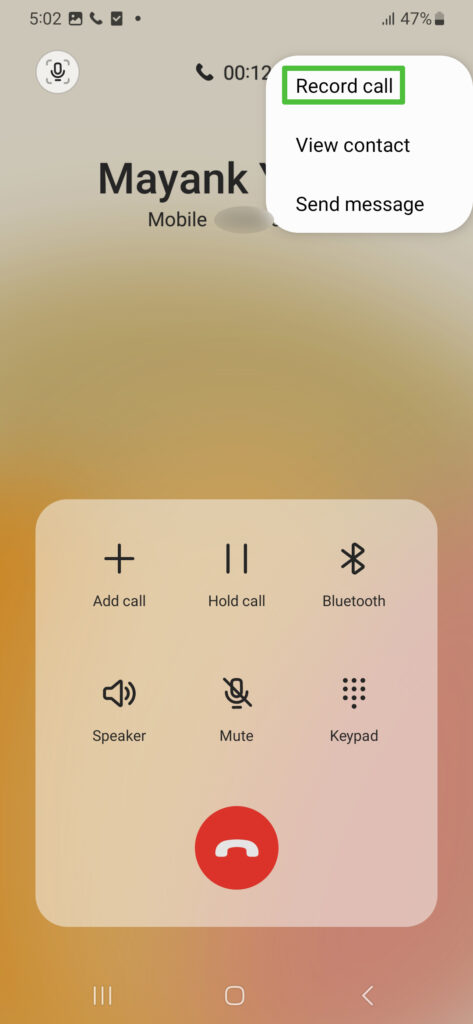
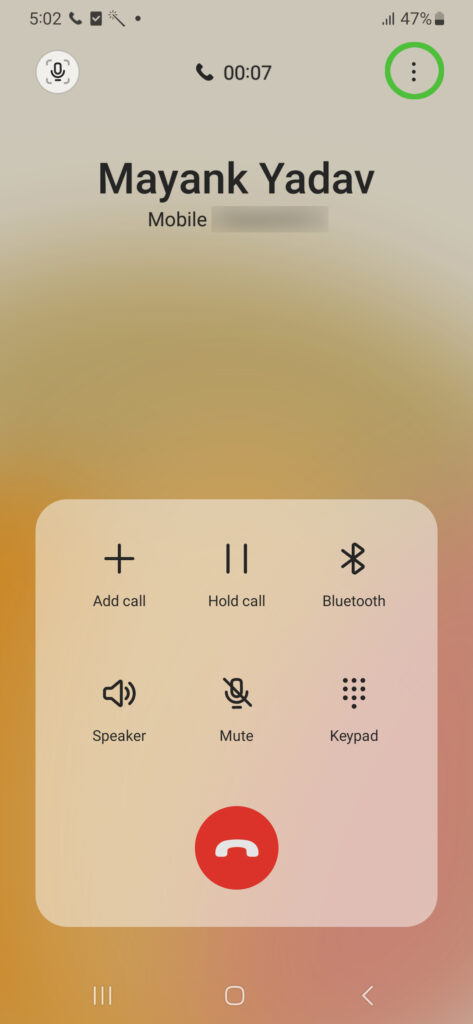
Step 1: While you’re on a call, click on the three dots at the top-right corner.

Step 2: Click on Record Call and call recording will start.
record calls samsung
How to Seamlessly Auto-Record Calls Without Announcement on Samsung Smartphones 14
record calls samsung
How to Seamlessly Auto-Record Calls Without Announcement on Samsung Smartphones 15

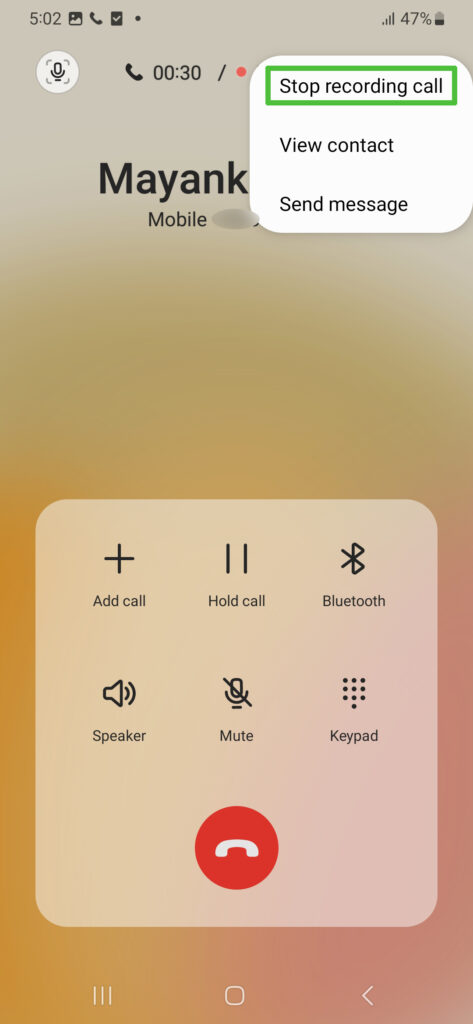
Step 3: To stop recording during the call, click on three dots again and select Stop Recording call.
record calls samsung
How to Seamlessly Auto-Record Calls Without Announcement on Samsung Smartphones 16

Your recording will be saved as the call ends or you manually stop it. To find the recorded call, scroll down in the article.

How to Auto-Record All Incoming and Outgoing Calls?

If you want to auto-record all the incoming and outgoing calls, you need to enable auto-call recording. Here is how to do so:

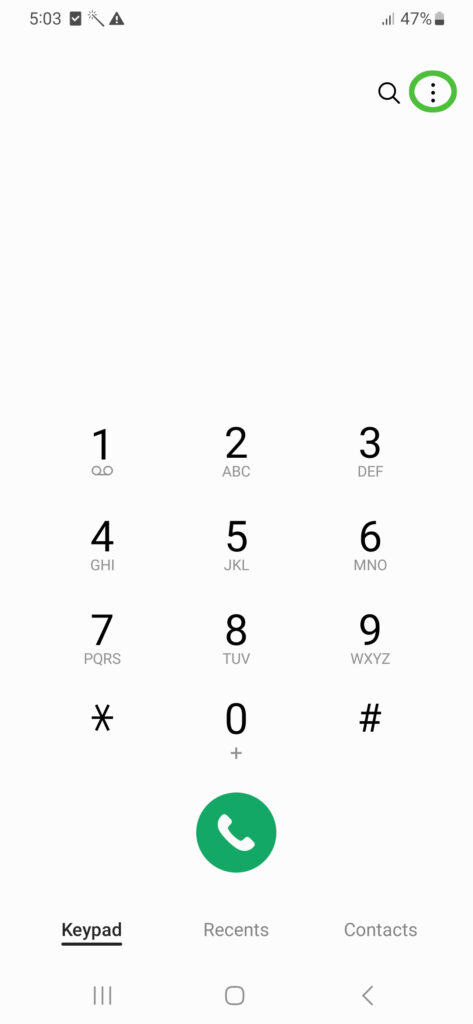
Step 1: Open the Phone app.

Step 2: Click on Three Dots and select Settings.
record calls samsung
How to Seamlessly Auto-Record Calls Without Announcement on Samsung Smartphones 17
record calls samsung
How to Seamlessly Auto-Record Calls Without Announcement on Samsung Smartphones 18

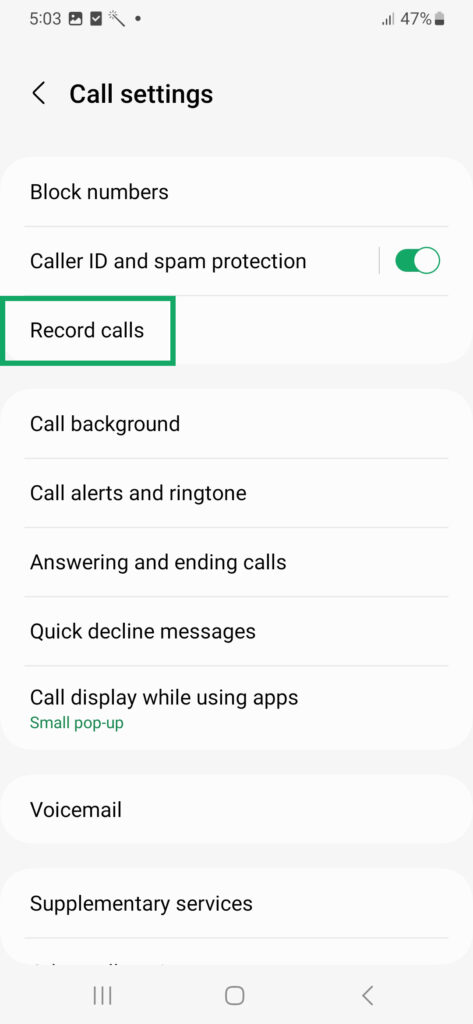
Step 3: Here, click on Record Calls.

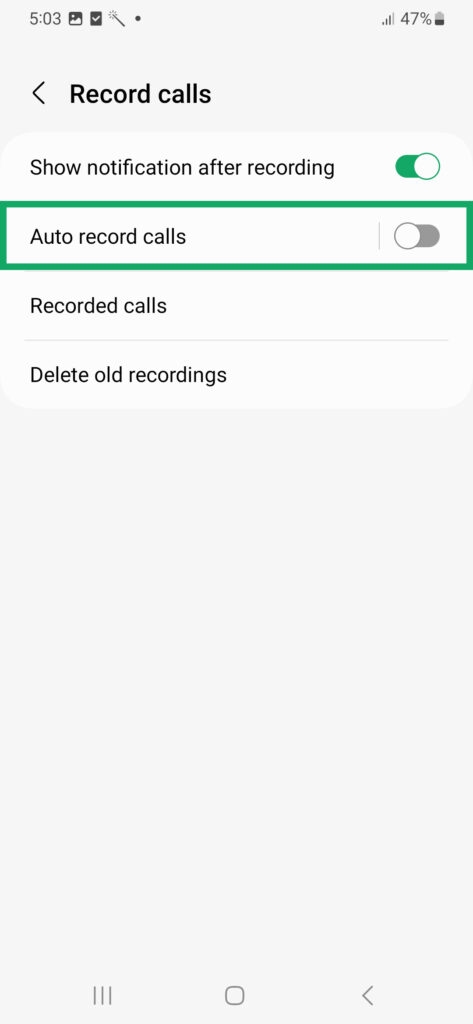
Step 4: Now, enable Auto record calls.

record calls samsung
How to Seamlessly Auto-Record Calls Without Announcement on Samsung Smartphones 19
record calls samsung
How to Seamlessly Auto-Record Calls Without Announcement on Samsung Smartphones 20

Step 5: You’re all set, now all your incoming and outgoing calls will be recorded automatically.

Now, let’s see where to find these recordings.

Advertisements

How to Find the Recorded Calls Saved on Your Smartphone?

There are two ways to find the recorded calls.

1st Way- Through Phone app

Step 1: Open the Phone app.

Step 2: Click on Three Dots and select Settings.
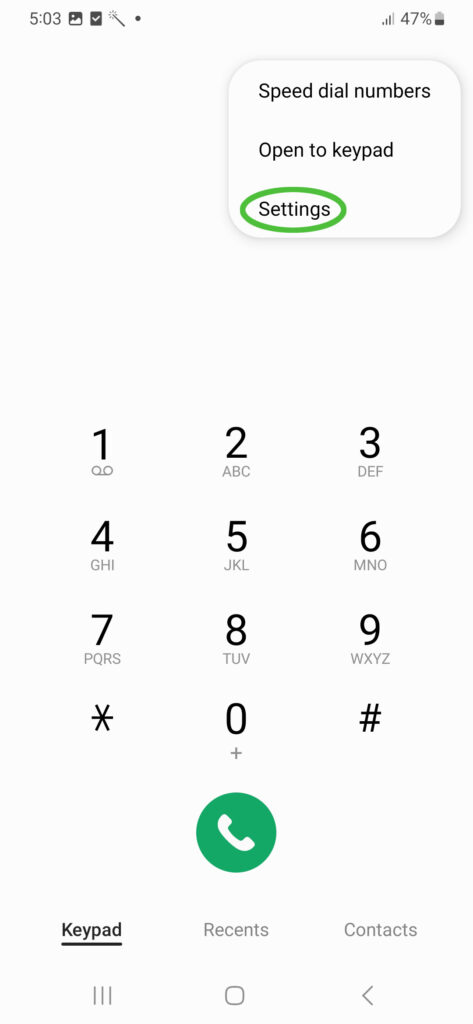
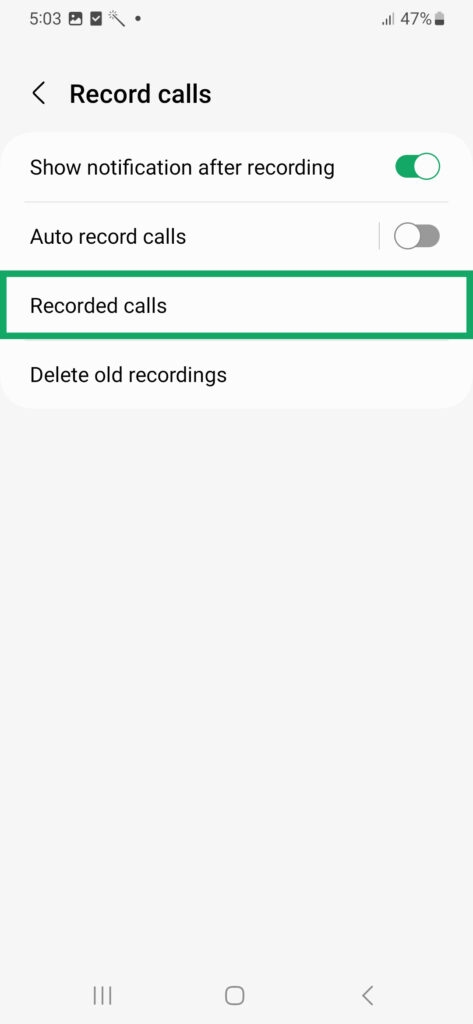
Step 3: Here, click on Record Calls.

Step 4: Click on Recorded Calls and it will take you to My Files’s call recording folder.
record calls samsung
How to Seamlessly Auto-Record Calls Without Announcement on Samsung Smartphones 21
record calls samsung
How to Seamlessly Auto-Record Calls Without Announcement on Samsung Smartphones 22

2nd Way- Through My Files app

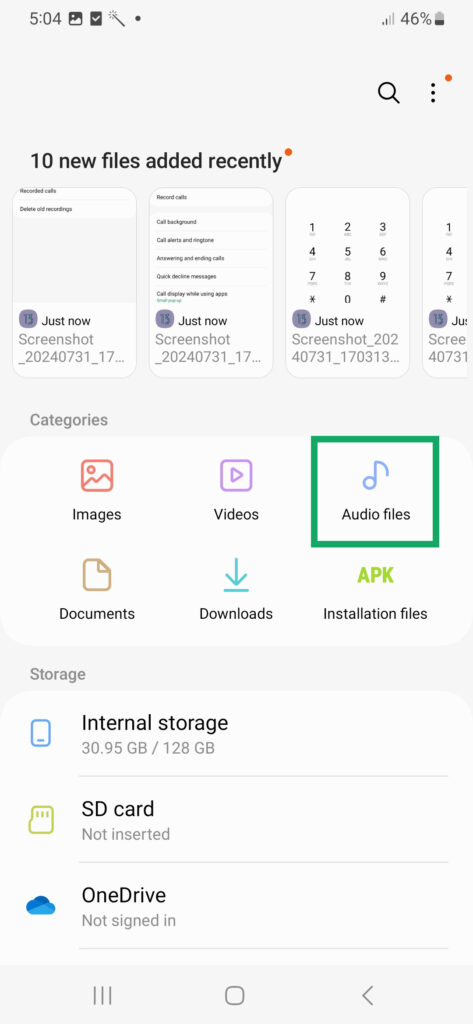
Step 1: Open the My Files app on your smartphone.

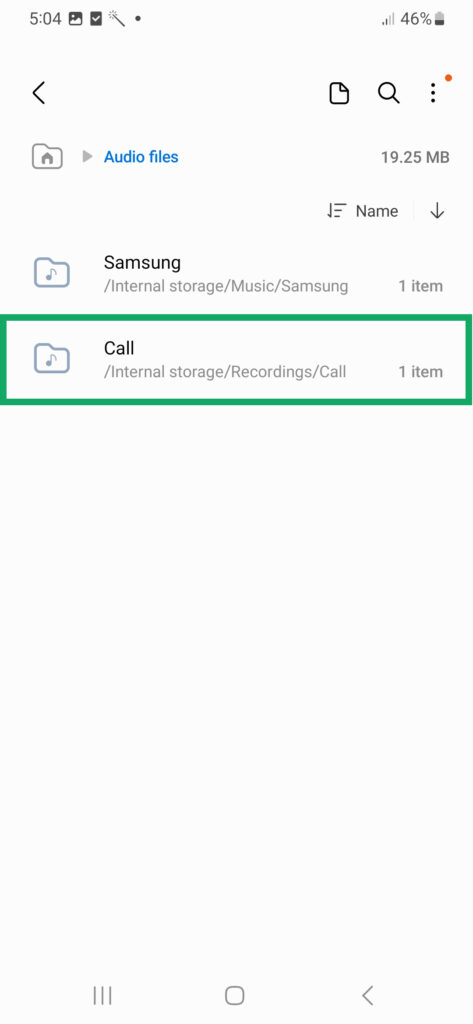
Step 2: Click on the Audio Files category.

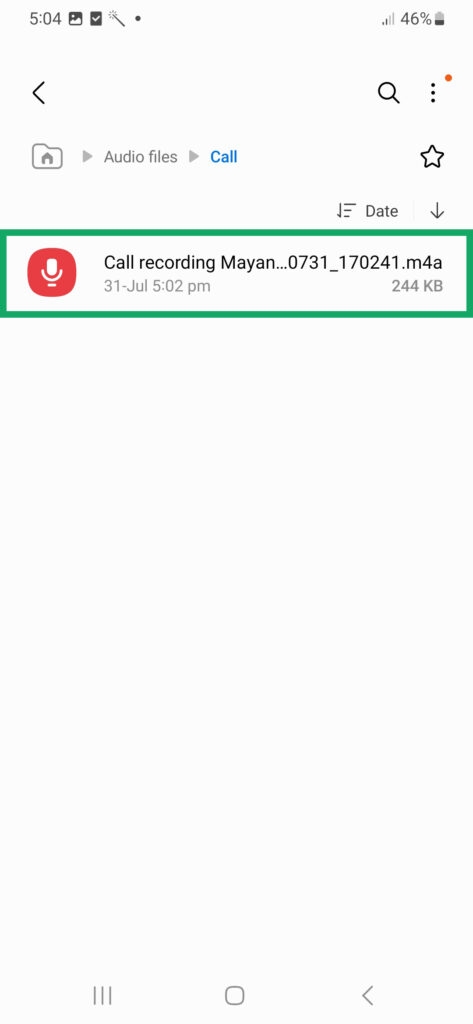
Step 3: Here, find the Call folder.
record calls samsung
How to Seamlessly Auto-Record Calls Without Announcement on Samsung Smartphones 23
record calls samsung
How to Seamlessly Auto-Record Calls Without Announcement on Samsung Smartphones 24

Step 4: Open it and you’ll find all the recorded calls, with the contact name, if not saved then the mobile number along with the date, time, and size.
record calls samsung
How to Seamlessly Auto-Record Calls Without Announcement on Samsung Smartphones 25

This was all about how to manually and auto-record calls on Samsung smartphones and how to find the recorded calls in two different ways very easily. As Samsung uses its own Phone app, we can easily record calls without any problems.

Also Read: CMF Phone 1: Detailed Review After 15 Days of Intense Use

We hope this article was helpful to you. Continue reading GizmoGeek Hub for more tech news, stories, and reviews that will keep you up to date on the newest trends and advancements in technology. We attempt to provide in-depth and unbiased reviews, detailed tutorials, and up-to-date news to help you improve your tech knowledge and expertise.

Follow us on X (previously Twitter), Instagram, LinkedIn, and our WhatsApp Channel to stay up to date on the latest news, announcements, and behind-the-scenes stuff.

Request – As a new site, we rely largely on advertising revenue to fund our operations. Please consider not using any ad blockers when viewing our website. Your support in viewing our advertisements is critical for us to continue providing high-quality content and services. We appreciate your understanding and cooperation in helping us keep GizmoGeek Hub running. Thank you for your support!


How to Fix Wi-Fi Networks Not Showing Up on Windows 11: Easy Solutions
WhatsApp is Working on a Favourite Contacts Feature
How to Use Google Gemini on Any Android in Any Region (Without VPN)
Realme GT8 Pro Launched in China with Interchangeable Camera Module
Why is Flat Display in Smartphones Better Than Curved Display in 2025?

Sign Up For Daily Newsletter

Be keep up! Get the latest breaking news delivered straight to your inbox.

By signing up, you agree to our Terms of Use and acknowledge the data practices in our Privacy Policy. You may unsubscribe at any time.
Share This Article
Facebook Copy Link Print
ByMayank Yadav
Mayank Yadav is a contributing writer at GizmoGeek Hub. He is interested in tech and write articles related to it. He is also focusing on his academic career and learning new skills.
Previous Article Record Calls How To Record Calls Without Announcement on Google Pixel Smartphones- Easy Steps!
Next Article Record Calls realme GT 6T vs OnePlus Nord 4: The Ultimate Showdown
Leave a Comment

Leave a Reply Cancel reply

Your email address will not be published. Required fields are marked *

This site uses Akismet to reduce spam. Learn how your comment data is processed.

Stay Connected

FacebookLike
XFollow
PinterestPin
InstagramFollow

Latest News

oneplus ace 6t
OnePlus Ace 6T Launched in China: Design, Specs, Pricing
Featured Smartphone Tech News
vivo x300 pro
vivo X300 Pro Launched in India: Detailed Overview
Featured Smartphone Tech News
samsung galaxy z trifold
Samsung Galaxy Z TriFold Launched: Specs, Overview, Pricing and Availability
Featured Smartphone Tech News
vivo x300
vivo X300 Launched in India with Dimensity 9500 and 6040mAh Battery, Detailed Overview
Featured Smartphone Tech News

You Might also Like

Record Calls
Smartphone

realme 13 Pro Series Launched in India: Everything Feels the Same and Nothing Exciting!

Aaditya Sahu
Aaditya Sahu
7 Min Read
Record Calls
How-to GuidesWindows

Access BIOS on Any PC and change the boot order: Easy Steps!

Arpit Patel
Arpit Patel
3 Min Read
Record Calls
SmartphoneTech News

Xiaomi 15 Series Revealed: Exciting Rumoured Specs and Price

Aditya Nair
Aditya Nair
5 Min Read

GizmoGeek Hub is a tech media blog that simplifies the latest in gadgets, innovation, and digital trends for curious minds and everyday users.

Career

  • Join Us
  • Write for Us

Support

  • DMCA Removal Request
  • DMCA
  • Disclaimer
  • Cookie Policy
  • Affiliate Disclosure

Stay Updated with GizmoGeek Hub

Get the latest on gadgets & tech trends straight to your inbox.
No spam. Just tech, simplified.

GizmoGeek HubGizmoGeek Hub
Follow US
© 2025 GizmoGeek Hub | Proudly part of Cre8sphere Media | Made with ❤️ at Origin8 | All rights reserved.
  • About Us
  • Contact
  • Privacy Policy
  • Terms and Conditions
  • Join Us
Join Us!
Subscribe to our newsletter and never miss our latest news, reviews etc..

Zero spam, Unsubscribe at any time.
Welcome Back!

Sign in to your account

Username or Email Address
Password

Lost your password?