
The majority of Windows users already knew about PIN (Windows Hello) and were using it. However, some users don’t know about the user account password, and even if they set it up on their computer, which acts as a backup option, they eventually forget the account password, which can be daunting. In this article, we will guide you on how to change user account password. Firstly how is it different from your PC’s password? Let’s learn that.
If you have stored your private files or documents and don’t want to share them with individuals, you can set a user account password apart from Windows Hello. If you have set a password (Windows Hello) on your PC and you don’t remember the password, you can unlock it through the user account password.
But if you have forgotten the user account password- don’t worry. In this guide, we show how to change the user account password on Windows 11 PC.
Ways to Change User Account Password on Windows 11
It might happen when users do not remember the account password they previously created. Dealing with this problem is quite frustrating, especially when you want to unlock your computer with a user account password. Even if you remember your current password, you can change it by using the current password to a new one.
Here, we have outlined some effective workarounds that will let you change a user account password on a Windows 11 PC. Let’s look at them one by one.
1. Change the Password Using the Windows Settings App
Windows Settings built-in the options to change the user account password and Windows Hello PIN too. It includes fingerprint and face recognition as well. You can use the Windows Settings app to change the user account password. Here’s how:
- Press the Windows + I key on the keyboard simultaneously to open the Windows settings app.
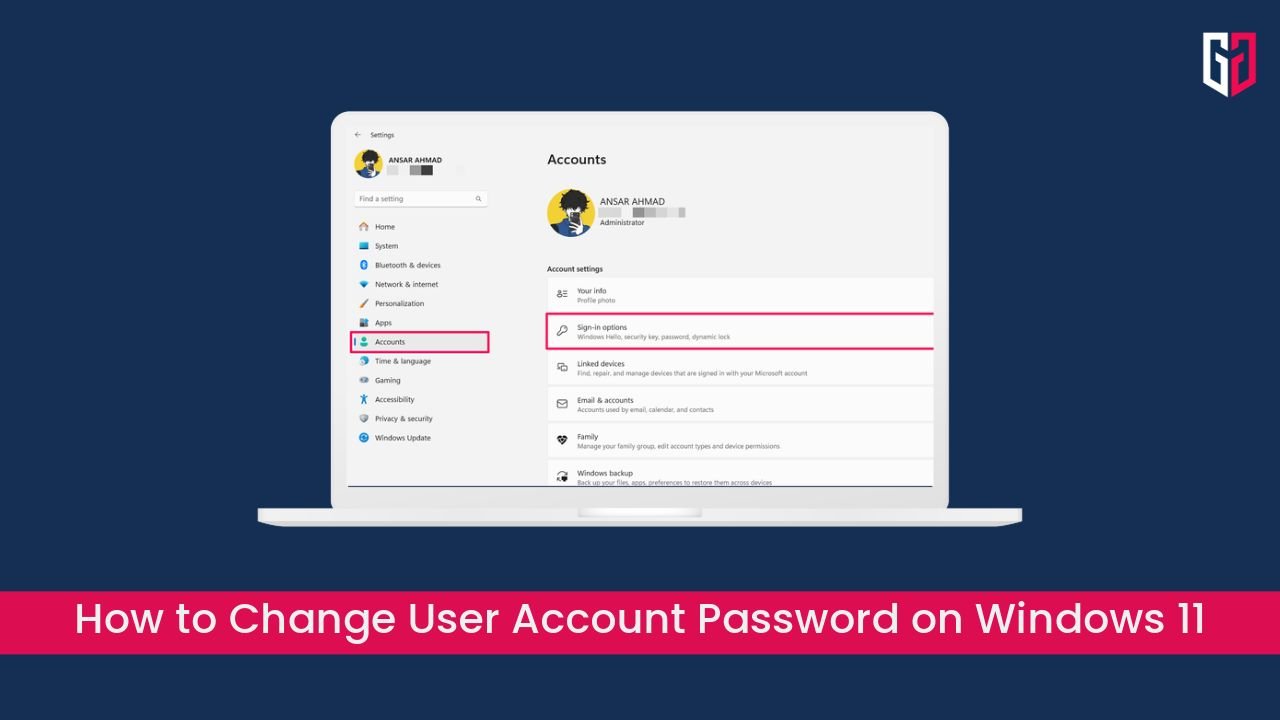
- Tap on Accounts on the left panel and choose Sign-in options.
 3. Expand the Password by clicking on the down arrow next to it and click the Change button.
- Now you will get a menu where you have to enter your current password. Type your current password and click Next.

Contents
- Then, you will be prompted to enter your new password. Type the new password you want to set and then re-enter it again in the Confirm password section.
- In the Password Hint field, type a password hint and click Next.

Enter the new password and click Next - Finally, click on the Finish button to change the account password and that’s all.

Now the user account password has been changed on your Windows 11 computer. You can now unlock your system either by using a PIN or an account password.
2. Change Account Password Using Command Prompt
In case you don’t remember your user account password, you can change it by using the command prompt without the current password. Make sure you run the prompt as an administrator to change the account password. Here’s how:
- Open the Command Prompt on your system, type “cmd” on the search bar, and select “Run as administrator.”
 2. If any prompt appears, simply click Yes to initiate the process.
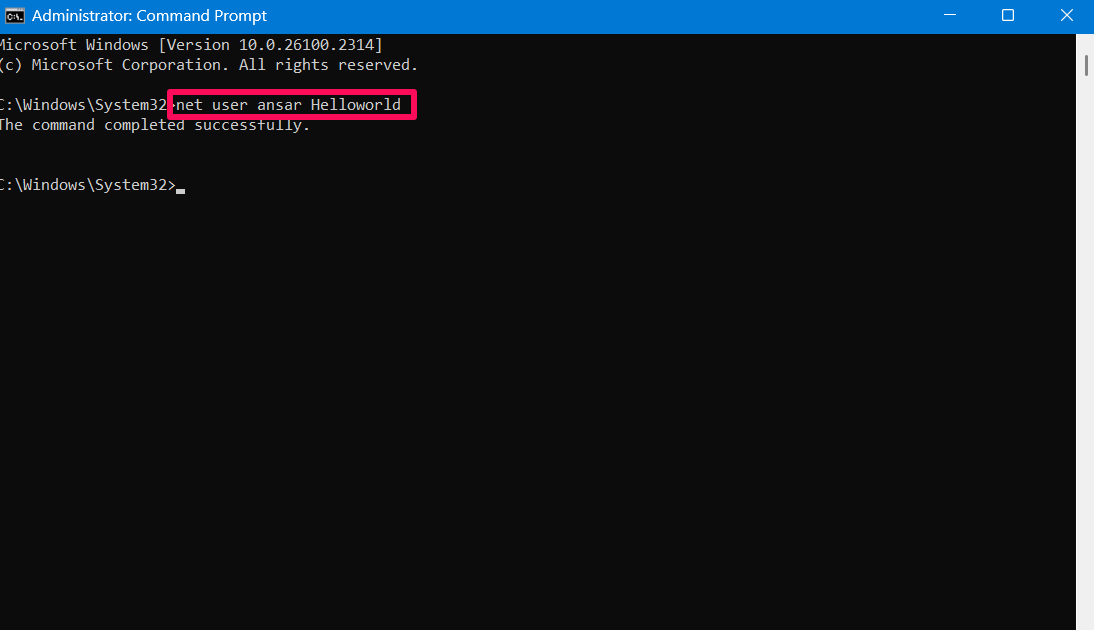
 - In the command prompt dialog box, type the below command and hit Enter.
net user (account name) (new password)
- You have to enter your account name after entering the net user and type your new password after that.
- For instance, you can follow the command like this.
net user ansar Helloworld
As soon as you correctly enter the command, you will get a successful message on the screen that indicates “The command completed successfully.”
Now the account password is changed on your system, you can use the user account password as a backup option if you want to unlock your computer.
3. Try Using the Control Panel to Change the User Account Password
If you remember your current password then you can change to a new account password using the control panel. This lets the users change the functionalities of the system as well as other changes including changing the user password.
Here’s how to change the user password using the control panel:
- Press the Windows + R key on the keyboard together to open the Run dialog box.
- In the field section, type the control panel and hit Enter.

- In the Control panel window, click on User Accounts.

- Then, click on User Accounts again.

- Next, click on Manage another account option and select your account.

- Now you will get the option to change the account password, account type, and account name.
- Click on the Change the password option.

- Under the Current password field, type the current password. Then, enter your new password and re-enter it again in the Confirm new password section.
- You can also add a password hint to remember your account password.
- Once you enter your password, click the Change Password button and that’s it.

4. Change your Microsoft Account Password Via the Official Website
If you’re looking to change your Microsoft account password on your system, you can go through the official website to change the password. Here’s how:
- Navigate to the official Microsoft website on your system.
- Sign in with your Microsoft user account first to get logged in.
- Click on the “Change password” (key-icon type) option located at the top.

- Here, you will be directed to the password security block. In the Current password field, type the current password.
- Enter the new password in the next field and re-enter it again to confirm the password.
- After entering the password in the field section, click Save.

7. You have now successfully changed the Microsoft account password.
Also Read: Microsoft Impressively Launches a New Windows App for iPhones, Macs, and Android Devices
The Bottom Line
Creating a user account password on your system is a great way if you want to create a backup password option. It allows you to unlock your system using the password after from PIN (Windows Hello). If you don’t remember your user account password, you can change it by following the aforementioned ways. Even if you don’t remember your older password, you can crack it through the command prompt.
That’s all for this. I hope that this guide was helpful to you. However, if you’ve any queries related to this, then leave them in the comments section and we will get back to you. Have a great day!
Follow us on YouTube, X (previously Twitter), Instagram, LinkedIn, and our WhatsApp Channel to stay up to date on the latest news, announcements, and behind-the-scenes stuff.
Request – As a new site, we rely largely on ad revenue to fund our site operations. We request that you switch off any ad blockers you are using while visiting our website. Viewing adverts on our website allows us to continue providing you with the high-quality content you appreciate. Your support means a lot to us and allows us to keep GizmoGeek Hub running smoothly. We sincerely appreciate your continuing support and thank you for sticking with us!