By using this site, you agree to the Privacy Policy and Terms of Use.
Accept
GizmoGeek HubGizmoGeek Hub
  • Gadgets
    • Smartphone
    • Laptop
  • Reviews
  • Tech News
  • How-to Guides
    • Windows
    • MacOs
    • iOS
    • Android
  • Wearables
  • Videos
Search
  • About Us
  • Contact
  • Privacy Policy
  • Terms and Conditions
  • Join Us
© 2025 GizmoGeek Hub | Proudly part of Cre8sphere Media | Made with ❤️ at Origin8 | All rights reserved.
Reading: How to Fix Notifications Missing Issue on Samsung Galaxy S24 Series
Share
Sign In
Notification Show More
Font ResizerAa
Font ResizerAa
GizmoGeek HubGizmoGeek Hub
  • Gadgets
  • Reviews
  • Tech News
  • How-to Guides
  • Wearables
  • Videos
Search
  • Gadgets
    • Smartphone
    • Laptop
  • Reviews
  • Tech News
  • How-to Guides
    • Windows
    • MacOs
    • iOS
    • Android
  • Wearables
  • Videos
Follow US
  • About Us
  • Contact
  • Privacy Policy
  • Terms and Conditions
  • Join Us
© 2025 GizmoGeek Hub | Proudly part of Cre8sphere Media | Made with ❤️ at Origin8 | All rights reserved.

Home » How to Fix Notifications Missing Issue on Samsung Galaxy S24 Series

How-to Guides

How to Fix Notifications Missing Issue on Samsung Galaxy S24 Series

Aaditya Sahu
Last updated: April 11, 2024 9:00 am
2 years ago
By Aaditya Sahu
357 Views
Share
Notifications Missing Issue
SHARE

Facing notifications missing issue on your Galaxy S24 series smartphone? Don’t worry! We are here to help you. In today’s article, we will tell you how to fix notifications missing issue on you Galaxy S24 series device.

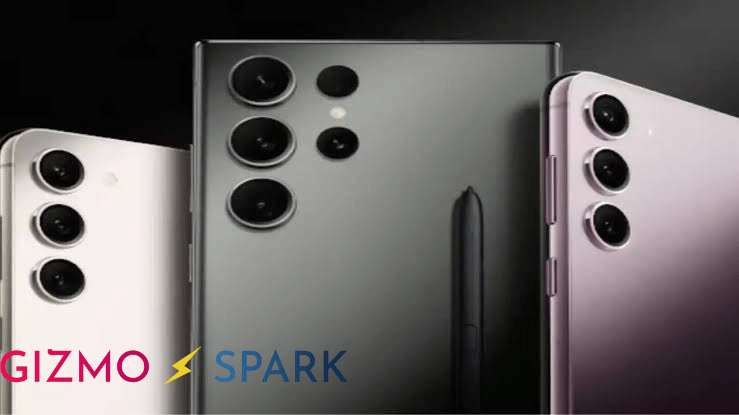
Samsung launched its much awaited Galaxy S24 series few weeks ago and many users are reporting that many apps are not sending notifications. Some apps only show an icon in the task bar while some don’t show anything. You are facing this problem because Samsung has a feature called Notification Categories in OneUI 6.1 which allows you to customise which type of notifications you want to recieve from an app. This feature is turned off when you buy the phone. You will have to enable it in the Settings app.

Also read: Samsung S24 Series: Exynos 2400 India, Snapdragon 8 Gen 3 Worldwide!

This process is a bit time consuming but it’s worth it. Follow these steps to enable notification categories in your Galaxy S24 series device –

  • Open the Settings app on your phone.
  • Tap on Notifications option.
  • Tap on Advanced settings.
  • Scroll down and enable Manage notification categories for each app.
  • Now, come back to the main Settings page.
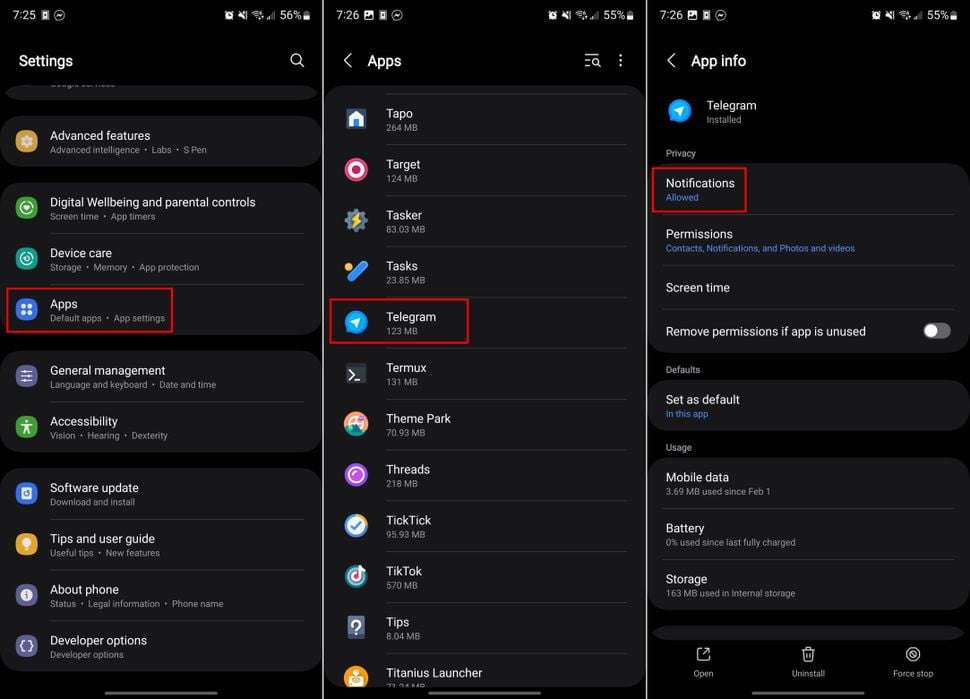
  • Find and tap on Apps.
  • Choose the app of which notifications you want to customise.
  • Tap on Notifications option under Privacy category.
Notifications Missing Issue
Image: Android Central
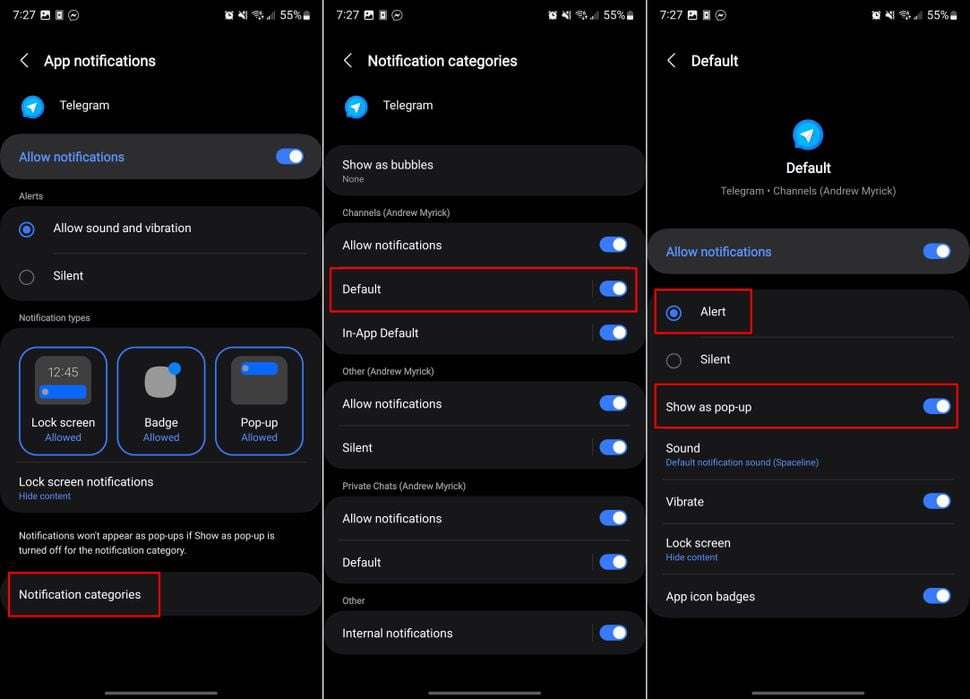
  • Click on Notification categories.
  • Choose the category for the app.
  • Make sure to enable Alert option.
  • Tap on Show as pop-up.
Notifications Missing Issue
Image: Android Central

You need to follow the same process for every app.

This was all about how to fix notifications missing issue in Galaxy S24 series. Do tell us in the comments if this article was helpful for you and follow Gizmo Spark on all social media handles to stay updated with the latest tech news.


Advertisements
How to Seamlessly Record Calls Without Announcement on Realme, OnePlus, and OPPO Smartphones
Install Windows on Your PC: Bloatware-Free Guide
Unlock the Ultimate Trick: Send a Fake Live and Current Location on WhatsApp with Ease!
Samsung Galaxy F56 5G Overview: Impressive Launch?
You Can Now Set ChatGPT as your Voice Assistant on Android 

Sign Up For Daily Newsletter

Be keep up! Get the latest breaking news delivered straight to your inbox.

By signing up, you agree to our Terms of Use and acknowledge the data practices in our Privacy Policy. You may unsubscribe at any time.
Share This Article
Facebook Copy Link Print
ByAaditya Sahu
Follow:
Aaditya Sahu is a Senior Writer at GizmoGeek Hub. He loves to learn about new gadgets and shares his views in form of articles. When he is not writing, you can find him on his X (formerly known as twitter) handle @techyaaditya or studying. Contact him on techyaaditya@gizmogeekhub.com.
Previous Article Circle to Search Image Other Android phones Will get Circle to Search, but it’ll take a little while
Next Article How to Use Google Gemini How to Use Google Gemini on Any Android in Any Region (Without VPN)
Leave a Comment

Leave a Reply Cancel reply

Your email address will not be published. Required fields are marked *

Stay Connected

FacebookLike
XFollow
PinterestPin
InstagramFollow

Latest News

Notifications Missing Issue
Install ColorOS Apps on OxygenOS Without Root: Easy Guide
Android How-to Guides
Notifications Missing Issue
Samsung Galaxy Z Fold 8 Wide CAD Renders Exposed
Smartphone Tech News
Notifications Missing Issue
OnePlus Nord 6 India launch announced for April 7th
Featured Smartphone Tech News
Notifications Missing Issue
My Experience with Stuffcool Mega 2 Power Bank: Surprisingly Reliable
Experience

You Might also Like

microsoft office activation
How-to GuidesWindows

Microsoft Office Activation: A Complete Step-by-Step Guide to Free Activation!

Mayank Yadav
Mayank Yadav
5 Min Read
Notifications Missing Issue
FeaturedSmartphone

Samsung Galaxy S25 Edge Specs Leaked: Listed for Pre-Order Before Launch!

Rayan Moideenkutty
Rayan Moideenkutty
5 Min Read
samsung galaxy z trifold
FeaturedSmartphoneTech News

Samsung Galaxy Z TriFold Launched: Specs, Overview, Pricing and Availability

Varun Polisetty
Varun Polisetty
6 Min Read

GizmoGeek Hub is a tech media blog that simplifies the latest in gadgets, innovation, and digital trends for curious minds and everyday users.

Career

  • Join Us
  • Write for Us

Support

  • DMCA Removal Request
  • DMCA
  • Disclaimer
  • Cookie Policy
  • Affiliate Disclosure

Stay Updated with GizmoGeek Hub

Get the latest on gadgets & tech trends straight to your inbox.
No spam. Just tech, simplified.

GizmoGeek HubGizmoGeek Hub
Follow US
© 2025 GizmoGeek Hub | Proudly part of Cre8sphere Media | Made with ❤️ at Origin8 | All rights reserved.
  • About Us
  • Contact
  • Privacy Policy
  • Terms and Conditions
  • Join Us
Join Us!
Subscribe to our newsletter and never miss our latest news, reviews etc..

Zero spam, Unsubscribe at any time.
Welcome Back!

Sign in to your account

Username or Email Address
Password

Lost your password?